Setup
Pre-releaseControls and settings that make the demo comfortable
A gamepad is recommended, but mouse-and-keyboard works and every important action can be rebound. Here are the confirmed defaults and the quality-of-life options worth checking.
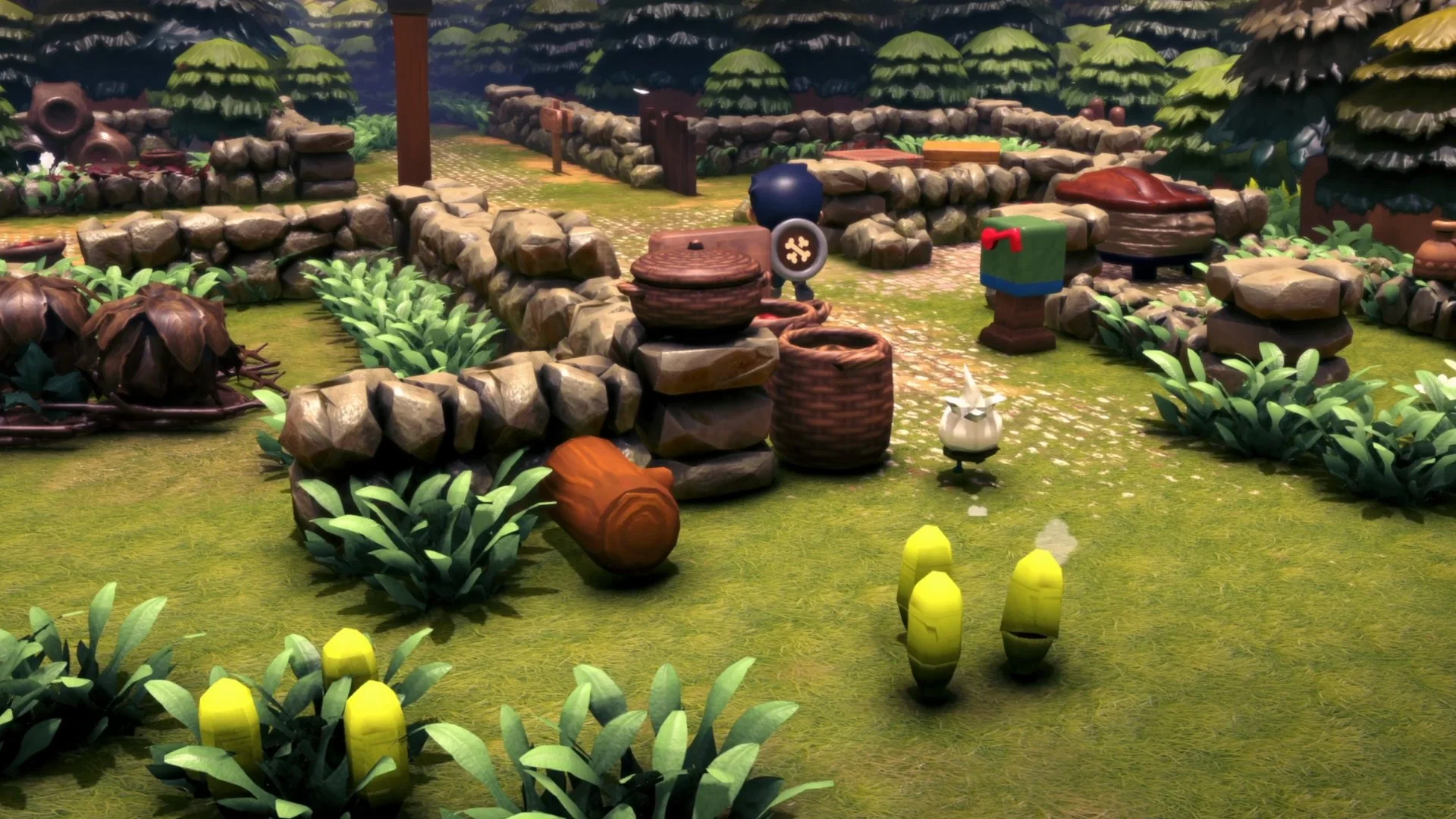
Controller first
Steam lists full controller support and marks the game as “Gamepad Recommended." The updated demo also supports button rebinding for both gamepad and mouse-and-keyboard, so you are not locked into a default layout.
Confirmed keyboard shortcuts
The May 2026 demo update moved several actions closer to the WASD area. These are the exact changes Apogee published:
| Action | New default | Old default |
|---|---|---|
| Inventory | Q | I |
| Gestures menu | C | G |
| Quick Action A | Left mouse button | N |
| Quick Action B | Space | M |
Movement, attack, interact, jump and menu bindings are not all listed in the patch notes we reviewed. Use the in-game control settings to see and change them. The patch notes do refer to WASD movement.
Settings worth changing
- Focus Glow (Settings → Guidance): highlights objects that can be picked up or interacted with. Useful if you keep missing plants, jars or quest objects.
- Camera auto-rotation (Settings → Guidance): for mouse-and-keyboard players. It keeps the camera moving with the character, which can reduce manual camera work.
- FPS cap (Settings → Graphics): an official option in the updated demo. Cap the frame rate if you prefer steadier frame pacing or lower heat/fan noise.
- Button rebinding: available for gamepad and mouse-and-keyboard. Rebind dodge and lock-on first if they feel awkward.
- Language: English or Spanish. The demo supports both.
A comfortable starting setup
- Use a gamepad if you have one; it is the recommended input.
- Turn on Focus Glow for the first hour while you learn what is interactable.
- On mouse-and-keyboard, try camera auto-rotation and turn it off if it fights your aim.
- Rebind lock-on and dodge to buttons you can reach without leaving the stick.
- Cap FPS only if you notice unstable pacing or high fan noise.
Known fixes and current issues
The May 2026 update fixed Steam Deck name-entry problems and several Spanish localization issues. ↗ We do not have a current, official list of open demo bugs, so we will not present one as complete.
If the demo does not launch, start with the basics: update Steam, verify the game files, check the minimum requirements, and try the demo at a lower resolution. Those are general troubleshooting steps, not confirmed fixes for a specific bug.
What we cannot confirm
The full default binding list, controller button layout, deadzone options, remapping presets and accessibility options beyond the published settings are not documented in our sources.
Sources & verification
Checked 2026-11-09Every claim on this page is traced to an official source, a named trade report, or a labeled hands-on preview. Pre-release details can change.
- Steam app details for Littlelands (app 2083660) Reference
- Demo Update Now Live! Community Feedback Changes Official
- Cozy Adventure Littlelands Launches into Steam Early Access November 16! Official
- Littlelands on Steam Official
- Demo Out Now! Your Cozy Adventure Begins Official
Hands-on sources are third-party previews quoted for observation. This site has not independently playtested the game.